Leave Your Message

10 Tips for Choosing Glove-Compatible Touchscreens

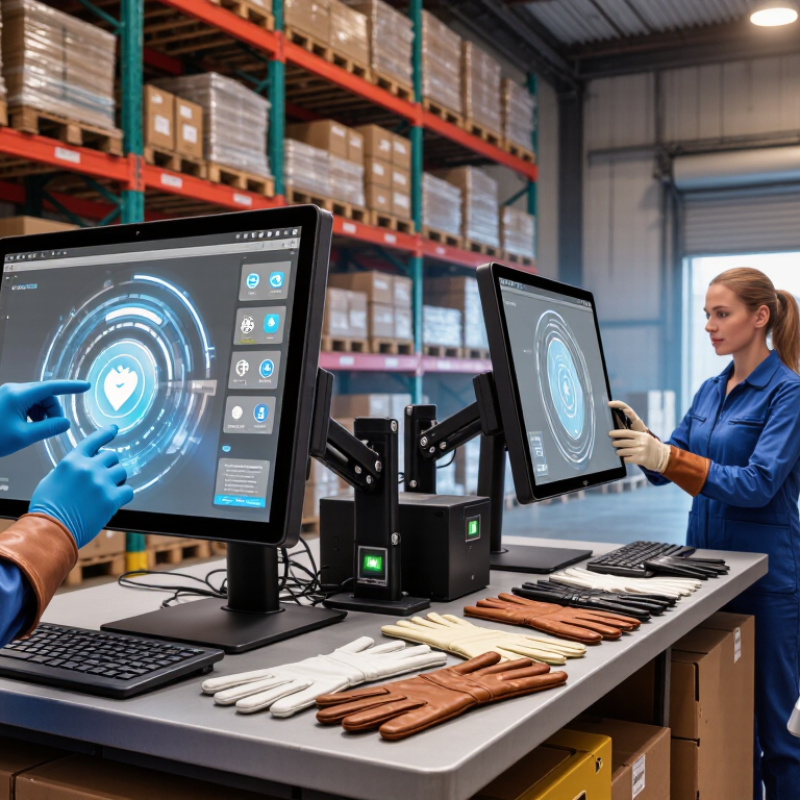
Choosing the right Glove-Compatible Touchscreens can determine whether a device feels dependable or frustrating in daily use. A display may respond perfectly to a bare fingertip, yet fail when workers wear thick nitrile, thermal, or leather gloves. In a warehouse, one missed tap can interrupt scanning, delay a shipment, or force an operator to remove protective equipment.

Real-world testing matters more than a product label. Check whether the touchscreen recognizes light taps, long presses, and swipes through the gloves your team actually wears. Test it near loading bays, where cold air can stiffen fingers and moisture can affect contact. Try the screen with clean gloves, damp gloves, and worn gloves. Small differences become obvious.

Not every specification tells the full story.

A reliable evaluation should examine sensitivity, accuracy, screen size, surface durability, and compatibility with protective films. Capacitive technology often performs well with conductive gloves, but results vary between models and glove materials. Resistive screens may offer different advantages in industrial settings, although they can feel less natural during frequent gestures. Ask suppliers for documented test conditions, operating-temperature data, and warranty details. Independent reviews can help, but hands-on trials remain more convincing.

Some choices are easy to overlook. Bright sunlight may reduce visibility. Tight mounting spaces may limit usable angles. A screen that works indoors might disappoint outdoors. This guide presents ten practical tips for comparing Glove-Compatible Touchscreens, while acknowledging an uncomfortable truth: the “best” model depends on the gloves, environment, users, and workload. Test before committing. Mistakes here can be expensive.
10 Tips for Choosing Glove-Compatible Touchscreens

Understanding How Glove-Compatible Touchscreens Work

Glove-compatible touchscreens detect input through materials that ordinary capacitive panels may reject. A bare finger changes the screen’s electrical field. Thick gloves reduce that change, so compatible panels increase sensitivity or use specialized signal processing. Some systems also support pressure-based input, which works differently.

Tip 1: Check the glove material before choosing a panel. Thin nitrile, leather, and insulated winter gloves produce different results. A touchscreen that works with one pair may fail with another.

The screen’s cover glass, sensor layout, and controller all affect performance. Moisture, dust, cold temperatures, and glove seams can create false touches or missed commands. In practical testing, operators should tap, swipe, drag, and use small on-screen buttons while wearing their actual work gloves. Controlled laboratory results are useful, but field behavior matters more.

Tip 2: Test at the lowest expected temperature. Cold fingers and rigid gloves can weaken contact accuracy. Tip 3: Leave enough space between controls. Crowded icons are difficult to operate with thick fingertips.

Look for adjustable sensitivity, palm rejection, and reliable operation through protective covers. These features can improve safety and reduce repeated inputs. However, higher sensitivity is not always better. It may detect accidental contact from a sleeve or tool. I have seen panels pass a quick demo, then struggle during long shifts. That gap deserves attention. Test for several hours, not only several minutes, and record missed touches honestly. No screen is perfect.
Identifying Glove Types and Touchscreen Use Conditions

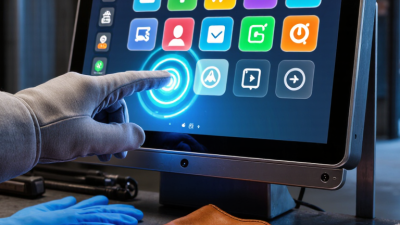
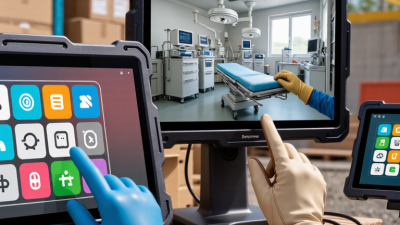
Choosing a glove-compatible touchscreen starts with the glove itself. Thin nitrile, latex, or vinyl gloves usually interfere less than insulated leather or thick coated work gloves, but fit and surface texture matter too. A loose fingertip can make accurate taps surprisingly difficult. Grand View Research estimated the global disposable-gloves market at US$12.2 billion in 2023, reflecting the wide range of glove materials in use. That market figure does not predict touchscreen performance; test the exact glove model and size instead.

Capacitive screens sense changes in electrical charge, so glove thickness, coatings, and moisture can affect response. Check the screen in its real setting: cold storage, a damp loading bay, or a dusty production floor. Try short taps, swipes, and small on-screen controls while wearing the gloves workers will actually use. Test with dry and damp fingertips, too. A screen that responds once may still miss repeated inputs. I would not treat a quick demo as validation. Record missed touches, false inputs, and the time needed to complete common tasks, then repeat the check after fitting any screen protector.

Glove Compatibility by Touchscreen Technology

Typical compatibility guide: 1 means the glove type can generally operate the screen; 0 means it generally cannot. Resistive screens respond to pressure, while projected capacitive screens usually require a bare finger or conductive glove. Actual performance varies by screen sensitivity, glove construction, and operating conditions.

Comparing Touchscreen Technologies and Sensitivity Settings

Choosing a glove-ready touchscreen starts with its sensing method. Projected capacitive panels detect changes in an electrical field. Thin fabric gloves may work, but insulated or wet gloves often reduce response. Resistive screens respond to pressure, making them useful with thick gloves or a stylus. However, they can feel less fluid during rapid gestures. Infrared systems detect interrupted light beams and usually accept many glove types. Bright sunlight, dust, or blocked edges can still create false touches. Test the environment.

Technology alone does not determine usability. Review sensitivity controls, palm rejection, touch thresholds, and glove-mode options. A higher setting can recognize a light tap through fabric. It may also register a sleeve, cable, or accidental brush. A lower setting reduces noise, yet demands firmer pressure. Operators should test several glove materials, including coated, insulated, and damp pairs. Use real gestures: tapping small icons, dragging sliders, and entering text. Do not test with one finger only. That shortcut hides problems.

Calibration deserves attention. Some panels perform well after setup but drift when temperature or moisture changes. Record missed touches and false activations across repeated trials. Then adjust sensitivity in small steps, not by choosing the highest value. Ideally, the interface should confirm contact without forcing repeated taps. That sounds obvious. It is not always achieved. A cold, wet shift may reveal more than a showroom demonstration.

10 Tips for Choosing Glove-Compatible Touchscreens — Comparing Touchscreen Technologies and Sensitivity Settings

Tip Technology Glove Compatibility Sensitivity Settings Key Trade-Offs What to Check Before Choosing
1 Projected capacitive (PCAP) Standard settings may not register ordinary gloves. Glove operation is possible when the panel and controller support increased sensitivity or glove mode. Look for a documented glove mode, adjustable touch threshold, or selectable profiles. Higher sensitivity can increase unintended touches. Supports multi-touch and typically offers a clear, durable surface. Performance depends on glove material, thickness, fit, and moisture. Test the actual glove types used on site, including insulated, coated, and wet gloves, rather than relying on a generic compatibility claim.
2 Resistive Usually works with gloves because input is registered by pressure rather than the electrical properties of a bare finger. Touch sensitivity is generally set by the panel and controller; verify that the required press force is comfortable through the intended gloves. Can work with many input tools, but commonly requires pressure and may provide less optical clarity than some capacitive panels. Check press force, surface durability, and whether frequent use with a stylus or other tools is expected.
3 Infrared (IR) Often detects a touch from a gloved finger because it senses interruption of light beams at the screen surface. Ask whether touch thresholds or rejection settings can be adjusted; the system must distinguish intended touches from beam obstruction. Does not require pressure on the display surface, but dust, debris, or objects near the bezel can interfere with detection. Inspect bezel design and test the screen in the cleanliness and lighting conditions where it will be installed.
4 Surface acoustic wave (SAW) Compatibility can vary: gloves or objects that absorb or disrupt surface waves may prevent reliable input. Do not assume a sensitivity adjustment will overcome signal absorption; confirm supported glove types with practical testing. Offers a glass surface, but contaminants or materials on the surface can affect operation. Test the exact glove material and thickness, and assess how easily the screen can be kept clean.
5 Optical imaging May detect a gloved finger by tracking contact or movement at the display surface; results depend on the system design. Check for configurable touch-area thresholds and palm or object rejection rather than assuming that sensitivity can be freely increased. Can support different input objects, but performance may be affected by ambient light, surface condition, or objects in the sensing area. Evaluate accuracy at the screen edges and under the lighting conditions expected in the installation environment.
6 Any supported technology Thin disposable gloves, fabric gloves, and thick insulated gloves can behave differently, even on the same panel. Use separate sensitivity profiles where available; a setting suitable for thin gloves may not work for thicker ones. A broad compatibility claim does not guarantee consistent operation across glove materials or sizes. Build a test list from the actual workplace: glove material, thickness, coating, fit, and whether gloves are dry or damp.
7 Adjustable controller settings Useful when the touchscreen supports glove use but needs tuning for the installed panel and operating conditions. Ask which parameters are adjustable, such as touch threshold, debounce time, or noise filtering, and whether settings persist after restart. More sensitivity may improve detection but can also cause false touches from palms, moisture, or electrical noise. Confirm that authorized staff can configure and restore settings, and that the manufacturer provides safe adjustment guidance.
8 Multi-touch operation Glove support and multi-touch support are separate capabilities; some glove modes may affect the number or accuracy of simultaneous touches. Check whether glove mode preserves the required number of touch points and gesture recognition. Multi-touch can support useful gestures, but thick gloves may make small targets and precise gestures harder to use. Test common actions—tapping, dragging, and any required two-finger gestures—with the intended gloves.
9 Display cover and surface A protective cover, overlay, or added screen protector can change touch response, particularly on capacitive systems. Verify sensitivity with the complete installed stack, including any cover, protective film, or overlay. Added protection can improve resistance to scratches or impacts, but an incompatible layer may reduce touch accuracy. Request confirmation that the touchscreen supports the planned cover and test after installation, not just on an uncovered sample.
10 Environmental and field testing Cold, moisture, dirt, and glove wear can change how reliably a user can operate the screen. Set sensitivity only after testing realistic conditions; check whether the system offers a practical way to switch profiles. Laboratory demonstrations may not reflect field use, and aggressive settings can increase accidental activation. Run a user trial in the intended environment and record missed touches, false touches, accuracy, and comfort before purchase.

Evaluating Durability, Display Quality, and Environmental Ratings

A glove-compatible touchscreen should be tested with the gloves people actually wear, not just bare fingers. Thick work gloves, damp fingertips, and cold conditions can change response. Check whether the panel registers taps and swipes without repeated presses. Small differences show.

Durability ratings add useful, measurable evidence. IEC 62262 classifies impact resistance: IK08 represents a 5-joule impact, while IK10 represents 20 joules. These ratings do not guarantee survival from every drop, but they help compare tested enclosures. For environmental protection, IEC 60529 defines IP ratings. IP65 indicates dust-tight protection and resistance to water jets; IP67 includes temporary immersion up to one metre for 30 minutes under specified test conditions. Match the rating to real exposure, such as washdown spray or dusty warehouse air.

Display quality needs hands-on checks, too. Measure brightness in the actual lighting, then inspect contrast and viewing angles with gloves on. A bright screen may still glare beneath overhead LEDs. Check that icons remain readable through a scratched cover or protective film. There is a trade-off: extra protective layers can reduce clarity or touch sensitivity. I would test a production-ready unit before choosing; specifications alone can miss that.

Testing Compatibility and Confirming System Requirements

A glove-compatible touchscreen should be tested with the gloves people will actually wear. Thin inspection gloves and insulated winter gloves can behave very differently. Try each glove on the intended display, not just a similar model in a showroom. Tap small icons, type several words, and drag a slider across the screen. Notice missed touches, delays, and accidental selections. Small failures matter.

Tip: Test wet and dry conditions separately. A lightly damp glove may reduce accuracy, while a dry one works well. Record the glove material, screen settings, and test results. This simple log makes comparisons more dependable. Repeat the test after the screen warms up; performance can shift. It is easy to overlook that.

Confirm the system requirements before purchasing or installing a display. Check the operating system, touch controller, connection type, and supported input modes. Ask whether glove operation needs a setting change or calibration. Then verify the screen’s response with the full system running, including its protective cover and usual applications. A bare panel may feel responsive, yet the installed system may not. Keep a little uncertainty in your notes; one short test cannot represent every shift, glove size, or working condition.